USER MANUAL · VERSION 1.0
From access request
to live monitoring.
Six steps take you from requesting an account to watching live PPE verdicts and reviewing the evidence behind them. Follow them in order the first time.
Before you start
Five minutes of preparation prevents most first-time problems.
- A RealWear headsetCharged, with the Safety AI app installed.
- Wi-Fi on the headsetIt streams video continuously, so use a stable network.
- A computer with a browserThe dashboard is where you provision headsets and review evidence.
- A workspace accountIf you do not have one yet, that is step 1 below.
Request your account
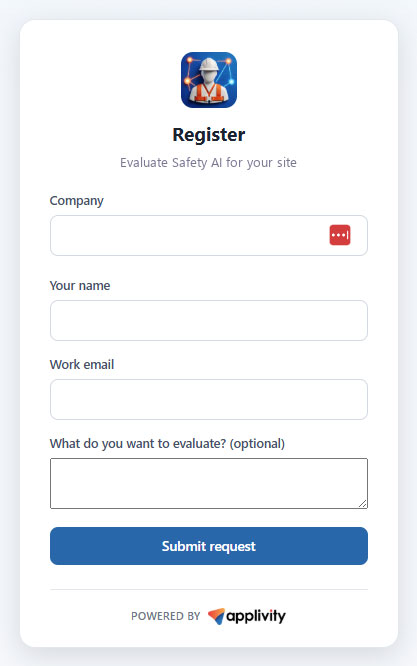
Accounts are created by approval, not self-service. You submit a request, and a private setup link arrives once it is approved.
WHAT TO DO
- Open safetyai.applivity.com/register.
- Enter your company, name, work email and the optional evaluation details.
- Select Submit request.
- When the request is approved, open the private setup link emailed to you and create your password.
You should see a confirmation that your request was received, then a setup email once it is approved.
Sign in
The dashboard is where you provision headsets, watch live feeds and review evidence. One address, one account.
WHAT TO DO
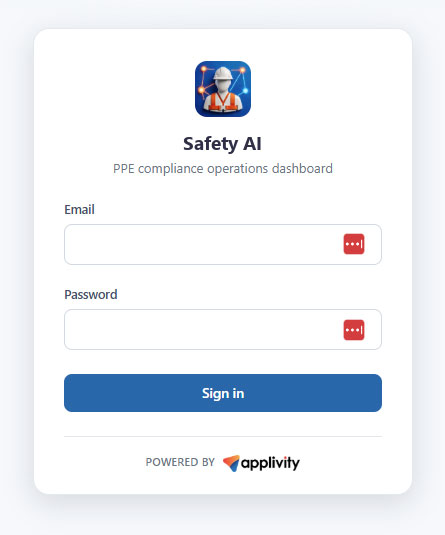
- Open the dashboard sign-in page.
- Enter the work email used during registration.
- Enter the password you created from your setup link.
- Select Sign in.
You should see your workspace dashboard, with Overview, Headsets and Account in the sidebar.
Register a headset
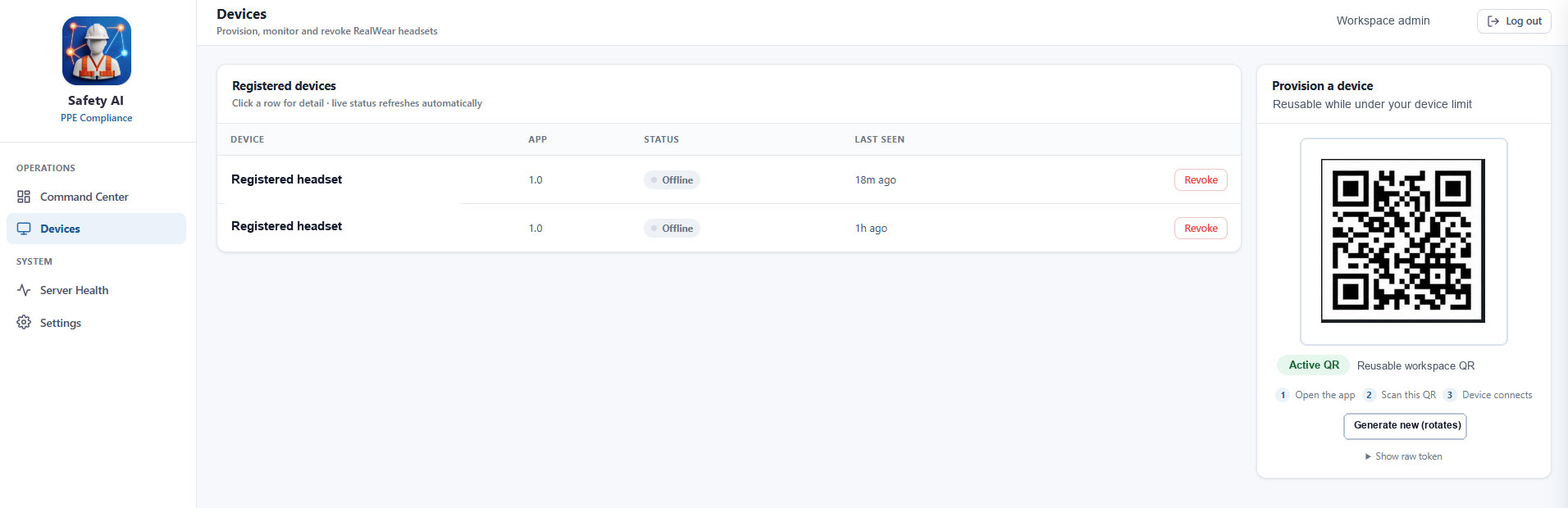
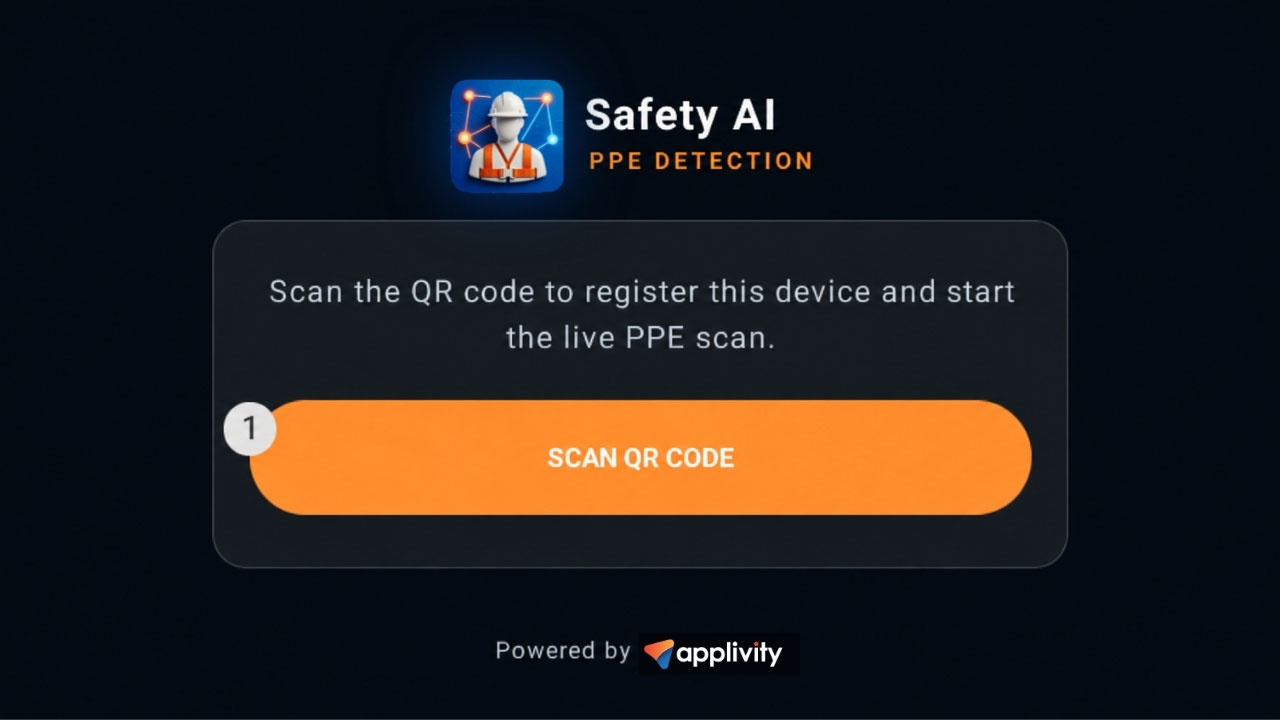
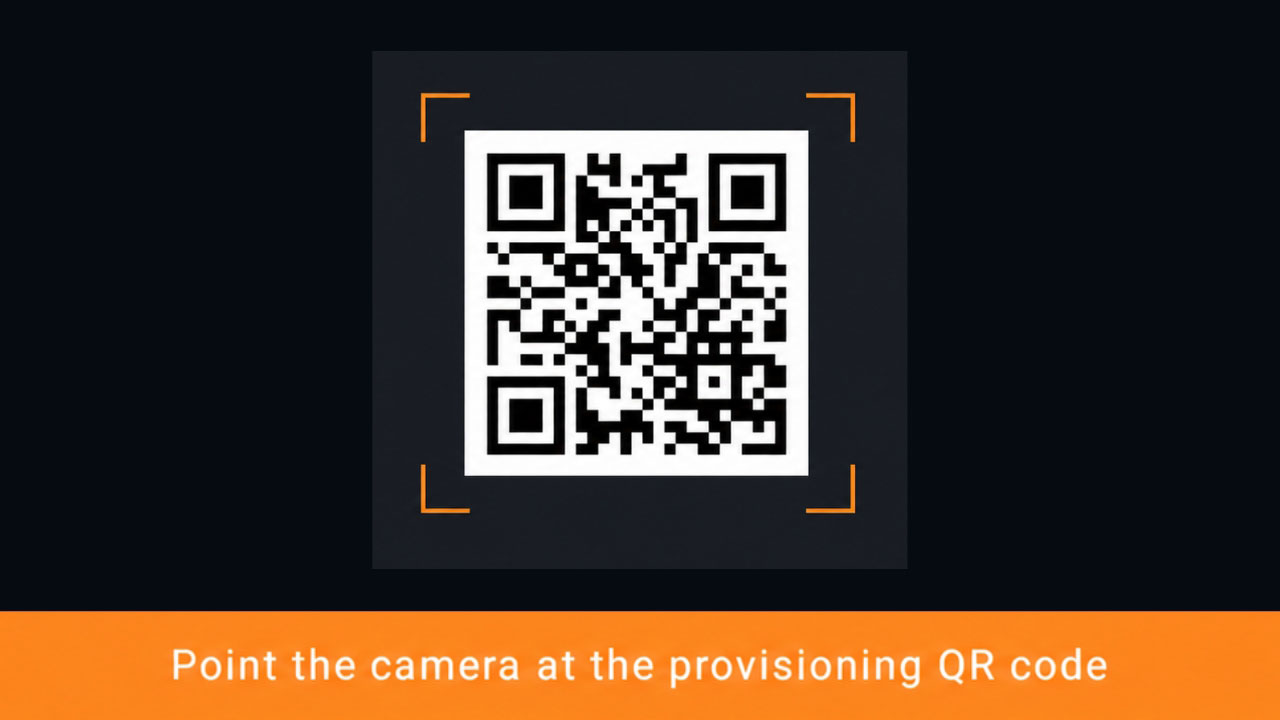
A headset joins your workspace by scanning its QR code. The same QR registers several headsets while you are under your device limit.

WHAT TO DO
- In the dashboard, open Headsets and display the active workspace QR.
- On the RealWear device, open Safety AI and select Scan QR Code.
- Hold the whole QR inside the camera view until registration confirms.
- Return to Headsets and check the device now appears in your list.
You should see the headset listed with a status and a last-seen time.
Monitor the live feed
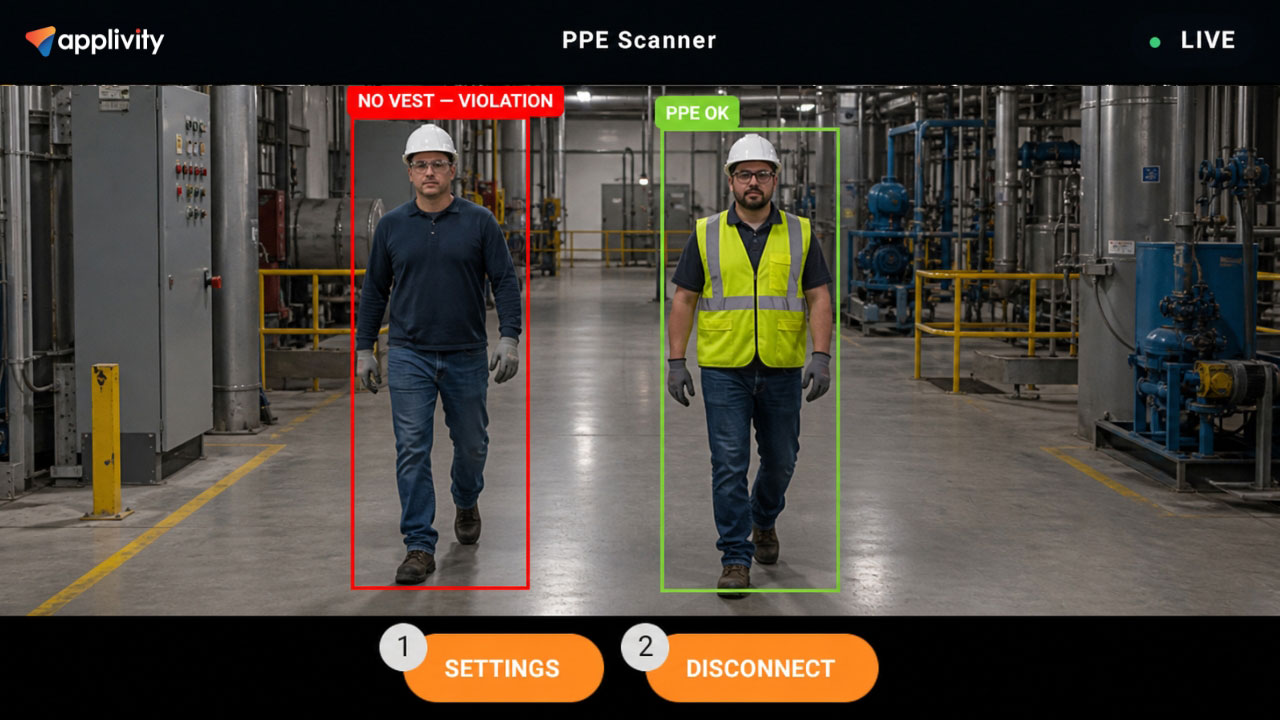
The wearer sees verdicts in their field of view. You see every connected headset at once, with detection boxes drawn in real time.
WHAT TO DO
- On the registered headset, select Connect.
- In the dashboard, open Overview and confirm the headset shows as live.
- Review the video tile, detection boxes and PPE verdicts.
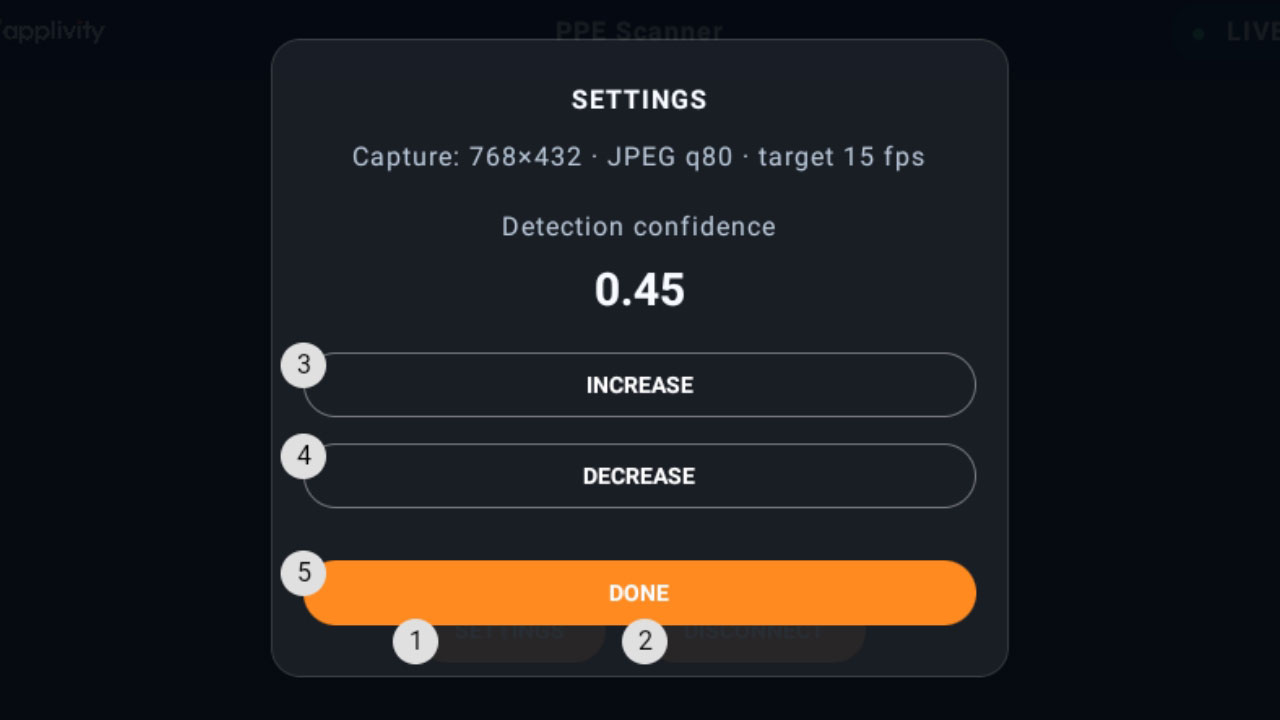
- Use Settings on the headset only if detection confidence needs adjusting.
You should see a live tile for the headset, and coloured boxes around each detected person.
Review violations
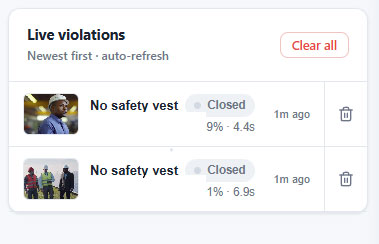
Successfully recorded violations include their timestamp and details; a snapshot appears when evidence storage succeeded. Treat the available record as evidence — read the image and details together.

WHAT TO DO
- Open the violations area from the dashboard.
- Review the newest violations first.
- Open a violation to inspect its snapshot and details.
- Use the status, snapshot and device details to understand the event.
CHECK WHEN REVIEWING
- Snapshot
- verify what the camera actually saw.
- Status
- confirm whether it is open or closed.
- Confidence & duration
- read both together, never alone.
- Device ID
- identify which headset reported it.
Manage devices
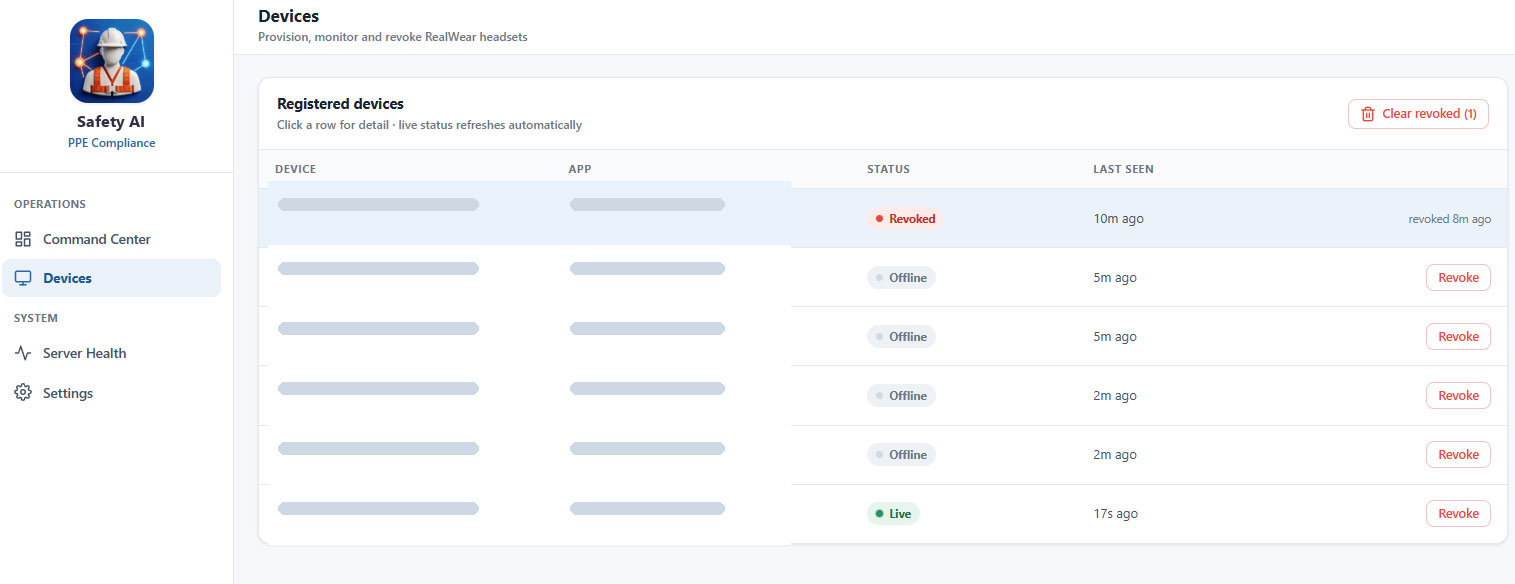
Headsets can be revoked at any time, and revoking is reversible — scanning the current workspace QR brings a device back.
WHAT TO DO
- Open Headsets to see every device registered to your workspace.
- Check Status and Last seen to judge whether a headset is active.
- Select Revoke when a headset should no longer connect.
- To restore a revoked headset, scan the current workspace QR again.
You should see the device marked as revoked, and it stops appearing in Overview.
Hands-free use
The headset is designed to be operated without touching it, which is the point of wearing it on a site.
- Numbered controlsEach on-screen control carries a small number badge, shown beside buttons such as SCAN QR CODE, SETTINGS and DISCONNECT.
- Keep the display readablePosition the display so the whole screen is in view before scanning a QR or reading a verdict.
- Voice command detailsVoice activation is provided by the RealWear device itself — follow your headset's own guidance for the exact spoken commands.
Quick reference
Where each routine task lives once you are set up.
| I want to… | Go to |
|---|---|
| Add another headset | Dashboard → Headsets → display the workspace QR |
| Watch live PPE verdicts | Dashboard → Overview |
| Look at recorded violations | Dashboard → violations area |
| Change my password or view trial status | Dashboard → Account |
| Stop a headset connecting | Dashboard → Headsets → Revoke |
| Bring a revoked headset back | Scan the current workspace QR again |
| Change detection sensitivity | On the headset → Settings |
| Stop streaming | On the headset → Disconnect |
NEED MORE HELP?
Troubleshooting and support.
The knowledge base covers the common blockers — QR codes that will not scan, headsets that will not connect, missing video tiles. If the issue remains, contact support with your account email, device name and the approximate time of the problem. Never send your password or a provisioning QR code.